Should You Scan File Uploads in a Self-Hosted App? A Practical Security Checklist
Malware scanning can reduce risk, but it is not a guarantee that an upload is safe. Use this checklist to assess where files go, how scan results are handled, and what safeguards should surround them.
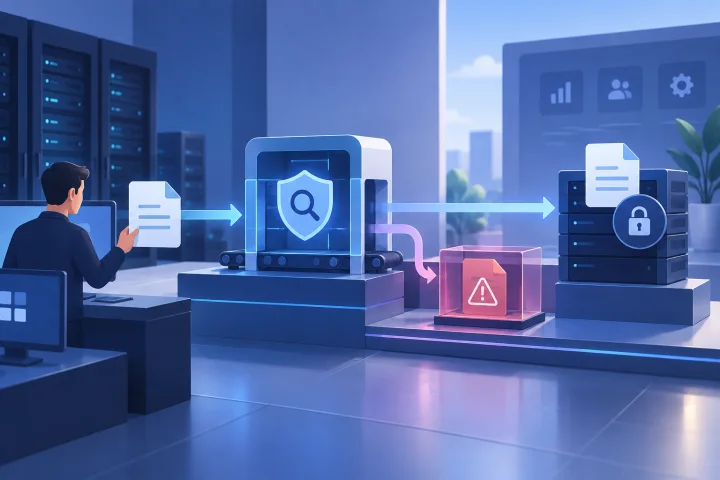
Start with the files and the people or services that handle them
Whether malware scanning for self-hosted application uploads is appropriate depends on what the application accepts and what happens after a file arrives. A document stored for occasional download presents a different workflow from a file that is immediately previewed, indexed, converted, or passed to another service.
Map the whole path, not just the upload form. Include the person who submits the file, the application that stores it, anyone who can view or download it, and any automated process that may read or transform it.
- List each application and upload route, including administrative or API-based routes where relevant.
- Record who can submit files: public visitors, customers, employees, administrators, or connected services.
- Identify the file types and sizes the application accepts, and whether it accepts archives or files that can trigger automated processing.
- Note who can access uploads and whether previews, indexing, conversion, or integrations act on files before a person reviews them.
- Prioritize workflows where uploads come from less-trusted users or are processed automatically.

Verify scanning support instead of assuming it is included
An upload feature does not, by itself, establish that uploaded files are scanned. Check the application’s official documentation for whether it supports a scanning integration, which upload paths it covers, and when scanning occurs.
Look for operational details, not only a feature name: Does the scan happen before a file is saved, made available, or processed? Which file types and storage locations are covered? What does the application do with a result it cannot classify? If documentation is unclear, treat the behavior as unverified and test it in a safe environment.
- Confirm the integration is supported for the application and deployment method you actually run.
- Check whether scanning is built into the application, requires a separate service, or depends on configuration you must maintain.
- Ask whether all relevant upload routes are scanned, including API uploads and files added through administrative workflows.
- Review documented limits, such as supported formats, archive handling, size limits, and scan timing.
- Do not infer scanning support from the hosting platform or from the fact that the app runs in a container.

Design the path from upload to availability
A useful design makes the file’s status clear. Consider keeping a new upload unavailable to ordinary users and downstream processing until the scan completes. If the scan reports a problem, retain the file in a restricted quarantine state rather than exposing it through a download or preview path.
The exact implementation depends on the application and its documented capabilities. If it cannot hold a file pending inspection or isolate a flagged upload, identify that limitation before enabling the workflow, then decide whether another control or a different application configuration is needed.
For storage hygiene, SANS’s secure-upload checklist advises creating a new filename rather than using the user-supplied filename as the local filename, and storing the file outside the local system location described in its guidance. Review the original checklist for context: https://www.sans.org/blog/8-basic-rules-to-implement-secure-file-uploads
- Define when a file becomes downloadable, previewable, searchable, or available to an integration.
- Separate pending or quarantined uploads from ordinary user access, to the extent the application supports it.
- Limit access to quarantined files to designated responders; document who may review or release them and under what conditions.
- Avoid relying on a user-supplied filename as the stored filename; preserve useful original-name information separately if the application supports it safely.
- Check that file storage is not unintentionally exposed through a public path or a service with broader access than necessary.
Choose a policy for scan failures and uncertain results
A scanner can be unavailable, take too long, or return a result that does not resolve whether a file is safe. Decide what the application should do in each case before an outage occurs.
For workflows where exposing an unchecked file would be an unacceptable risk, a conservative policy is to keep it unavailable until inspection succeeds or an authorized person makes a documented decision. A policy that lets uploads proceed when scanning fails may be more convenient, but it leaves a gap that administrators should explicitly accept and mitigate.
- Define separate outcomes for clean, flagged, failed, timed-out, and inconclusive scans.
- Choose whether an unscanned file is held, rejected, or allowed through under a documented exception; do not leave this behavior implicit.
- Set an owner and response path for scanner outages, including how users are informed if uploads are delayed or rejected.
- Record who can review a quarantine item, what evidence they need, and who can authorize release or deletion.
- Avoid treating a missing scan result as a clean result.
Test the workflow, including the ways it can fail
A configured scanner is not proof that the complete upload path behaves as intended. Test the application in a controlled environment with representative, harmless files and scenarios, and confirm what users and administrators see at each step.
Do not use live malicious files for routine testing. Arrange safe test cases appropriate to the application and scanning product, and follow their documentation. Check not only the upload response but also whether a file can be reached through previews, downloads, indexing, or automated processing while inspection is pending.
- Verify how an accepted upload moves from pending to available after a successful scan.
- Verify that a rejected or flagged upload cannot be downloaded, previewed, or processed by another service.
- Simulate an unavailable scanner, timeout, and inconclusive result; check that the chosen policy is followed.
- Review logs for enough information to investigate an event without unnecessarily exposing file contents or sensitive data.
- Check that the user receives a clear status or error message and that an administrator can identify who owns the next action.
Keep scanning in a wider set of safeguards
Scanning is one layer, not a guarantee that a file is safe. Trend Micro Research recommends scanning files before saving or processing them in an application uploader as a way to help avoid malware; that recommendation does not establish that scanning catches every threat or replaces other controls. See: https://www.trendmicro.com/en_us/research/24/d/file-scan-before-upload.html
Reduce the chance and impact of problems around the scanner. Review who can upload, keep application and scanning components updated, restrict access to stored files, and make sure your backup and incident-response plans account for uploaded data. These controls address different parts of the risk; one should not be treated as a substitute for another.
- Grant upload permissions only to users and services that need them.
- Set and periodically review file-size, type, and archive limits that fit the application’s intended use.
- Use least-privilege access for the application, storage, scanner, and any services that process files.
- Keep the application and its supporting components updated, using the project’s official guidance.
- Confirm backups cover the files and configuration you need, and clarify who is responsible for restoration and incident response.
- Document accepted residual risks, escalation contacts, and the steps for containing or investigating a suspicious upload.
A practical go-live checklist
Before enabling uploads—or changing how they are handled—make sure the responsible administrator can answer these questions. If a critical answer is unknown, verify it in the vendor documentation or through a controlled test before relying on the workflow.
bullets
- Which users and services can upload files, and what happens to each file afterward?
- Does the application officially support scanning in this deployment, and which upload paths does it cover?
- When can a file be accessed or processed, and what happens when it is flagged or cannot be scanned?
- Who can access quarantine and approve an exceptional release?
- Have previews, downloads, integrations, scanner outages, and user-facing messages been tested?
- Are permissions, file limits, updates, backups, and incident responsibilities reviewed?
Frequently asked questions
Use these answers as a starting point; the application’s official documentation determines which controls are available in a particular deployment.
bullets
Frequently asked questions
Does antivirus scanning make uploaded files safe?
No. Scanning can help identify malware, but the supplied evidence does not establish that it detects every threat or guarantees safety. Keep access controls, updates, and safe handling of files in place as separate safeguards.
Should uploads be blocked if the scanner is unavailable?
Choose the behavior based on the risk of exposing an unchecked file. For higher-risk workflows, keeping files unavailable until a successful scan or an authorized review is a conservative choice. Document any policy that allows uploads to proceed without a completed scan.
What should I check in the application documentation?
Verify whether scanning is officially supported, when it happens, which upload routes and file types it covers, and how flagged, failed, timed-out, or inconclusive scans are handled. Test any behavior that the documentation does not make clear.
What if my application does not support file scanning?
Do not assume a separate scanner can be connected safely without application support. Review the app’s documented options, consider whether uploads or automated processing can be limited, and assess whether the application fits your security requirements before relying on it for that workflow.
Sources and further reading
- Importance of Scanning Files on Uploader Applications — Trend Micro Research
- 8 Basic Rules to Implement Secure File Uploads — SANS Institute