Will This Docker Application Run on Your Server’s CPU Architecture? A Compatibility Checklist
Check whether a Docker application and its supporting services match your server’s platform. Learn how to inspect image manifests, verify vendor support, test a representative deployment, and document unresolved risks.
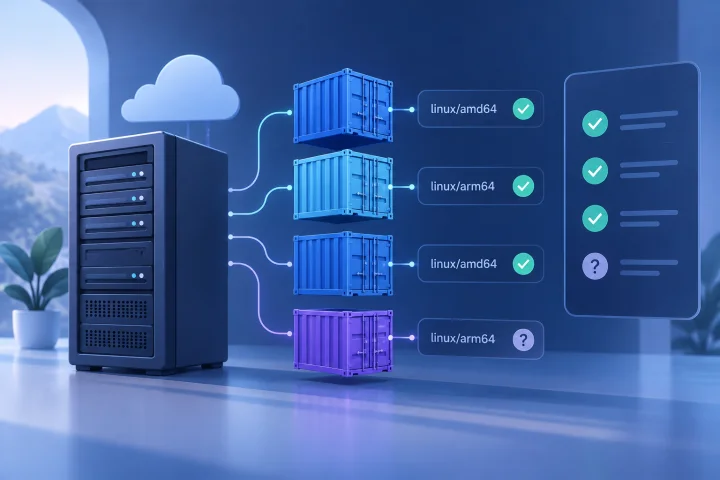
Why CPU architecture compatibility matters for a Docker deployment
A Docker container is not a virtual machine with its own independent kernel. Containers share the host kernel, so the code inside an image must be compatible with the host environment. Docker describes platform-specific image variants such as linux/amd64 and linux/arm64; when an image provides suitable variants, the runtime can select one for the host. See Docker’s [multi-platform builds documentation](https://docs.docker.com/build/building/multi-platform/).
The key question is not simply whether an application has a Docker image. It is whether every image and architecture-sensitive component in the deployment supports the target platform, and whether the application works there for your intended use.
Architecture mismatch can show up at different stages: an image may not be available for the platform, a native executable may fail to start, or a supporting component may not work as expected. A successful image pull alone is not proof of a successful application deployment.
- Check the platform of the server where the workload will actually run; do not infer it from a provider name or product category.
- Review the main application image and every service it depends on.
- Treat manifest availability, vendor support, and successful application testing as separate pieces of evidence.

Identify the server architecture and the platforms the application requires
Start by asking the server operator for the platform of the specific server or instance under consideration. If you can access its Docker Engine, run `docker info` and inspect the Architecture field in the output. Docker’s [CLI reference](https://docs.docker.com/reference/cli/docker/system/info/) shows this field, with `aarch64` as one example.
Record the operating system as well as the CPU architecture. Image platforms are commonly written in a form such as `linux/arm64` or `linux/amd64`; OCI image metadata can also include an architecture variant. Names and variants matter when comparing the host with an image or vendor support table.
Next, list the platforms the application requires or supports. Use the documentation for the exact image and version you plan to deploy, rather than assuming the latest tag, a repository description, or an image built for another platform represents your deployment.
- Target host OS and architecture: record the operator-confirmed values.
- Application image: record the exact image reference and version or tag.
- Required platform: note the documented OS, architecture, and any variant.
- Evidence: save the relevant command output or vendor documentation reference.

Check image manifests and official documentation for supported platforms
An image reference may point to an OCI image index containing separate manifests for different platforms. The index’s platform descriptors include fields such as operating system and architecture, and may include a variant. See the [OCI image index specification](https://github.com/opencontainers/image-spec/blob/main/image-index.md). An image configuration also identifies the OS and the CPU architecture for which its binaries are built; this is described in the [OCI image configuration specification](https://github.com/opencontainers/image-spec/blob/main/config.md).
For a registry image, Docker documents [`docker buildx imagetools inspect`](https://docs.docker.com/reference/cli/docker/buildx/imagetools/inspect/) as a way to view image details and the platforms listed for its manifests. For example, inspect a specific reference with `docker buildx imagetools inspect IMAGE:TAG`, replacing the placeholder with the image and tag you intend to use. Compare the listed platforms with the target server rather than relying on the repository’s general description.
Then check the image publisher’s official documentation for supported platforms, deployment requirements, and any platform-specific limitations. A manifest entry is useful evidence that an image variant exists; it is not, by itself, a guarantee that every application feature, optional component, or workload is supported in production.
- Does the inspected image reference list the target OS and architecture?
- Does the vendor document that platform for the application version you plan to deploy?
- Are there notes about variants, required build options, or excluded features?
- Do the image reference and documentation describe the same version?
Include databases, plugins, sidecars, and other supporting containers in the review
A business application is often deployed as more than one container. Review the platform support for its database, cache, queue, proxy, worker, sidecar, and any optional service in the deployment configuration. A compatible main image does not settle compatibility for the rest of the stack.
Inspect the actual Compose file or deployment instructions, including images referenced indirectly through profiles, overrides, or optional features. Docker Compose defines a `platform` attribute per service using `os[/arch[/variant]]`; it can influence which image version is pulled or the platform used for a build. See Docker’s [Compose services reference](https://docs.docker.com/reference/compose-file/services/). Treat this setting as a selection or build instruction, not as evidence that the selected image’s contents are compatible.
Check vendor documentation for each supporting image, especially when a component is maintained by a different project or supplier. Keep a component-by-component record so that a platform gap in one dependency does not disappear inside an overall statement that the application is supported.
- List every service in the deployment, including optional and profile-specific services.
- For each service, record its image reference, target platform, and source for the support claim.
- Flag services whose platform is unknown or whose documentation does not match the planned version.
- Review Compose `platform` settings and confirm that they align with the intended host and image.
Look for architecture-specific binaries, drivers, and model-serving dependencies
Some compatibility constraints are inside an image or attached to a feature rather than obvious from the top-level application name. Look for bundled native executables, compiled extensions, plugins, command-line tools, and vendor-provided drivers or toolkits. The OCI image configuration’s architecture field describes the architecture for which the image’s binaries are built, but it does not describe every optional dependency or external integration.
Read the application’s official installation and hardware documentation for requirements tied to optional functions. If the deployment uses GPU support or another hardware toolkit, check that supplier’s platform support separately. For example, NVIDIA publishes a [Container Toolkit support table by Linux distribution and architecture](https://docs.nvidia.com/datacenter/cloud-native/container-toolkit/latest/supported-platforms.html); that documentation is separate from a workload image’s manifest.
For AI or model-serving software, verify the platform support for each relevant layer: the application image, the model-serving runtime, any hardware toolkit, and the particular feature or model workflow you intend to test. Do not treat a compatible user interface or API container as proof that all inference paths are supported.
- Search official documentation for terms such as platform, architecture, native, binary, driver, GPU, and hardware requirements.
- Identify optional features that introduce their own binaries or hardware dependencies.
- Check each tool or driver against its own vendor support documentation.
- Mark undocumented combinations as unverified rather than assuming they work.
Understand the difference between native execution and emulation
A platform-specific image variant that matches the host is different from running an image built for another architecture through emulation. Emulation may be available in some environments, but it is not equivalent evidence to native support and should not be assumed to behave identically.
Docker documents QEMU emulation for running Intel-based containers on Apple silicon and warns that this can be slower, use more memory, or encounter failures. See Docker’s [known-issues documentation](https://docs.docker.com/desktop/troubleshoot-and-support/troubleshoot/known-issues/). That is a reminder to assess the actual host, runtime, image, and workload rather than generalizing from a successful test on a different machine.
If you are considering emulation, confirm that the server environment supports the required setup and that the application vendor supports the arrangement for your use case. Test the workloads that matter to you, and record the arrangement as emulated rather than native.
- Native match: the host and image target the same platform.
- Emulated execution: the image targets a different architecture and relies on an emulation mechanism.
- Unknown: the deployment runs, but the execution mode or vendor support has not been confirmed.
- Do not use a Compose platform setting by itself as proof that emulation is available or that the workload is supported.
Test a representative deployment and define what counts as a successful test
After checking documentation and manifests, run a test in an environment that matches the intended server platform as closely as practical. Use the same image references, Compose configuration, and important supporting services planned for deployment. A test on a different architecture may provide useful information, but it does not verify the target platform.
Docker Compose supports [`docker compose up --wait`](https://docs.docker.com/reference/cli/docker/compose/up/), which waits for services to be running or healthy. A health status is one useful check, not a complete acceptance test. Confirm that the application starts, its dependencies connect, and the essential tasks for your use case work. If the Compose configuration defines health checks, review what those checks actually test.
Define success before testing. Include the workflows your team needs, not just container startup. For an AI application, for example, specify whether you need the interface to start, a configured model service to respond, or a particular inference workflow to complete; test only the requirements that apply to your deployment.
- Start the representative stack and capture startup errors and service status.
- Verify that required services reach their expected running or healthy state.
- Exercise the application’s essential workflows and integrations.
- Record the host platform, image references, configuration, test date, and observed results.
- Repeat a failed or inconclusive test after changing one identified variable, so the cause is easier to isolate.
Document gaps, fallback options, and revalidation triggers
When evidence is incomplete, record the uncertainty explicitly. Distinguish between a confirmed platform match, a vendor-documented but untested configuration, a tested configuration, and a configuration that depends on emulation. This gives technical and purchasing decision-makers a clearer basis for comparing hosting environments.
For each unresolved item, note its impact, who can verify it, and the next action: request confirmation from the application vendor or server operator, test on the target platform, choose a documented alternative image, or select a server platform that meets the application’s requirements. If there is no supported route for a required workload, do not treat a workaround as a confirmed compatibility solution.
Recheck the evidence when a material part of the deployment changes. Useful triggers include changing the application version or image reference, replacing a supporting service, changing the target server platform, enabling an optional hardware-dependent feature, or revising the deployment configuration.
Managed hosting can reduce infrastructure work, but it does not remove the need to verify application requirements or make decisions about data, access, and governance. Airbip runs application instances as Docker workloads on cloud servers; if you are evaluating a managed deployment, confirm the target platform and compatibility of the specific application stack rather than inferring them from the hosting model.
- Component and image reference
- Required and observed platform
- Evidence source and date checked
- Native, emulated, or unknown execution mode
- Test result and outstanding limitation
- Owner, next action, and revalidation trigger
Frequently asked questions
How can I check which architecture a Docker image supports?
For an image in a registry, run `docker buildx imagetools inspect IMAGE:TAG` and review the listed manifest platforms. Compare those platforms with the target server, then check the image publisher’s official documentation for support details and limitations. See Docker’s [command reference](https://docs.docker.com/reference/cli/docker/buildx/imagetools/inspect/).
How do I check a server’s Docker architecture?
Run `docker info` on the Docker Engine that will run the application and inspect the Architecture field. Record the operating system and any relevant platform variant separately when comparing them with image support. See Docker’s [CLI reference](https://docs.docker.com/reference/cli/docker/system/info/).
Does a Docker image manifest prove the application will work?
No. A manifest shows which platform-specific image manifests are available. You still need to verify vendor support, dependencies, architecture-sensitive features, and the workflows your deployment requires.
Can I use emulation if the image does not match my server’s architecture?
Possibly, depending on the environment, but do not assume it is available or equivalent to native execution. Confirm vendor support and test the actual workload on the intended environment. Docker’s [known-issues documentation](https://docs.docker.com/desktop/troubleshoot-and-support/troubleshoot/known-issues/) notes that emulation can bring performance, memory, or reliability issues in some circumstances.
If the main application supports my architecture, do its dependencies automatically support it too?
No. Check every database, sidecar, worker, plugin, driver, and other supporting component independently. Each may have its own image platforms and vendor requirements.
What should count as a successful architecture test?
At minimum, the representative stack should start as expected, required services should reach their intended status, and the application’s essential workflows should work on the target platform. Define those workflows before testing and record the environment and results.
Sources and further reading
- Multi-platform builds — Docker
- docker system info — Docker
- docker buildx imagetools inspect — Docker
- Compose services reference — Docker
- OCI image index specification — Open Container Initiative
- OCI image configuration specification — Open Container Initiative
- Docker Desktop known issues — Docker
- NVIDIA Container Toolkit platform support — NVIDIA
- Docker Compose up — Docker